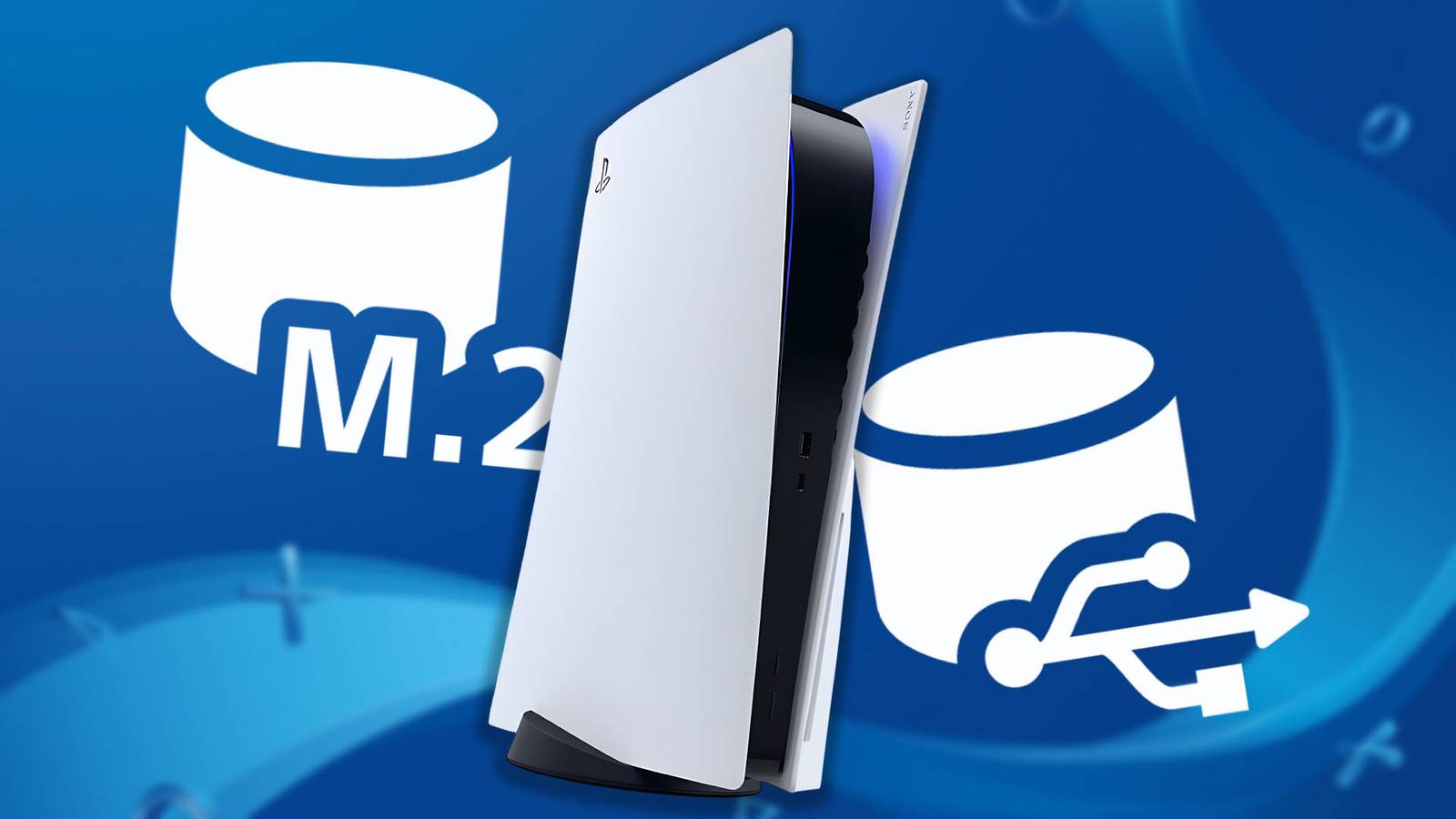
The PS5 has 825GB of built-in storage, but that can fill up very quickly once you factor in system files and the size of modern games. The good news is that you don't always have to be stuck uninstalling and reinstalling games depending on what you want to play week to week. There are two ways to get more storage on your PS5, but which one you choose depends on how secure you open your PS5 and what kind of games you want to store. In this guide, I'll go over how to expand the PS5's internal storage, as well as how to use an external hard drive to quickly and easily expand storage for certain games.

The best-looking PS5 games, ranked
The best-looking games on PlayStation 5 have outstanding graphics and are a must-have for gamers who appreciate games with great graphics.
Get more PS5 storage with an internal NVMe SSD
Adding an internal NVMe SSD gives you more of the same storage your PS5 came with. In other words, you can play PS5 games directly from it. Before we start installing the device, you need to make sure that you get a compatible device.
Which M.2 NVMe SSDs are compatible with the PS5?
You can't just buy any M.2 NVMe SSD. It must meet the following criteria:
-
PCIe Gen4 x4 NVMe (key M)
-
Capacity 250GB-8TB
-
Read speed: 5500 MB/s or faster (recommended)
-
Form factors: 2230, 2252, 2260, 2280, 22110
-
Heatsink: Required
If all of this sounds a little too confusing, you can make things easier by looking for a PS5 certified device. I've included a list of these below, or you can check out our list of the best M.2 SSDs for PS5:
Install NVMe SSD in your PS5

To install the NVMe SSD into your PS5, you'll first want to make sure you have a #1 Phillips or Phillips screwdriver and a flashlight or a very well-lit room. Next, make sure your PS5 is completely turned off and unplugged. Finally, ground yourself by touching a metal grounded object to remove static electricity from your body. Failure to do this may damage and break your M.2 SSD drive or PS5.
-
Remove the side cover of your console that contains the disc drive, or the triangle symbol if you have a console with the model number CFI-2000/7000. This is the cover on the same side as the disk drive above it if your console was standing up.
-
Removing the cover can be difficult. Place the console with the bottom facing up and the front facing you, and gently lift the cover off the console to release the internal clamps. Remember to remove the feet if you have them attached.
-
-
Next to the fan you will see a rectangular cover with a screw on top of it. Remove the screw and lift off the cover.
-
Remove the screw in the expansion slot and move the spacer to the slot corresponding to the size of your M.2 SSD. You should see the numbers 30, 42, 60, 80 and 110 next to each slot/hole.
-
Insert the M.2 NVMe SSD into the slot by holding it in a diagonal position with the gold contacts pointing down towards the port. Insert it all the way into the port and you should see it still sits at an angle.
-
Press down on the other end of the NVMe SSD and secure it with the second screw you removed that previously held the spacer.
-
Replace the expansion slot cover and secure it in place with the screw.
-
Replace the side cover and reconnect the power and HDMI cables to your console.
-
Turn on your PS5 and complete the on-screen formatting wizard to get your new PS5 storage up and running.
Honestly, I found the hardest part of the process to actually remove the PS5's side cover. My launch edition console's side cover was quite stubborn, so you have to grab it from the back corner and pull it up to the right. You should then be able to slide the cover off the PS5 while keeping one hand on the system itself to hold it in place. The rest of the process is pretty simple, so kudos to Sony for making it so user-friendly.
Expand PS5 storage with an external USB hard drive
If you just want to expand your PS5's storage for PS4 games you're still playing on your system, you can plug in an external USB hard drive. This external hard drive can also be used to store PS5 games, but they cannot be played directly from it. Instead, you can move PS5 games you're no longer actively playing to the external drive and then transfer them back when you want to play them again.

This saves you from having to download games that can have large installation sizes and take a long time to download over slower internet connections.
I've included a list of some of the best PS5 external storage drives below:
Once you have received a compatible drive, simply plug it into one of the USB ports on your PS5, format the drive by selecting the “Format as Extended Storage” option that appears on the screen, and wait for it to complete.
You can then freely move games from your internal storage to the external drive as and when you need.
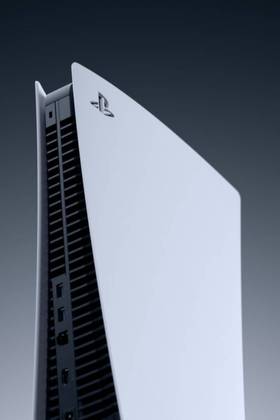
- Stamp
-
Sony
- Original release date
-
November 12, 2020
- Original MSRP (USD)
-
$499, €499, £449, £49,980 (Base) // $399, €399, £359, £39,980 (Digital),
- Operating system
-
Orbis Olympics
- Processor
-
Custom 8-core AMD Zen 2
- Resolution
-
720p – 8K
