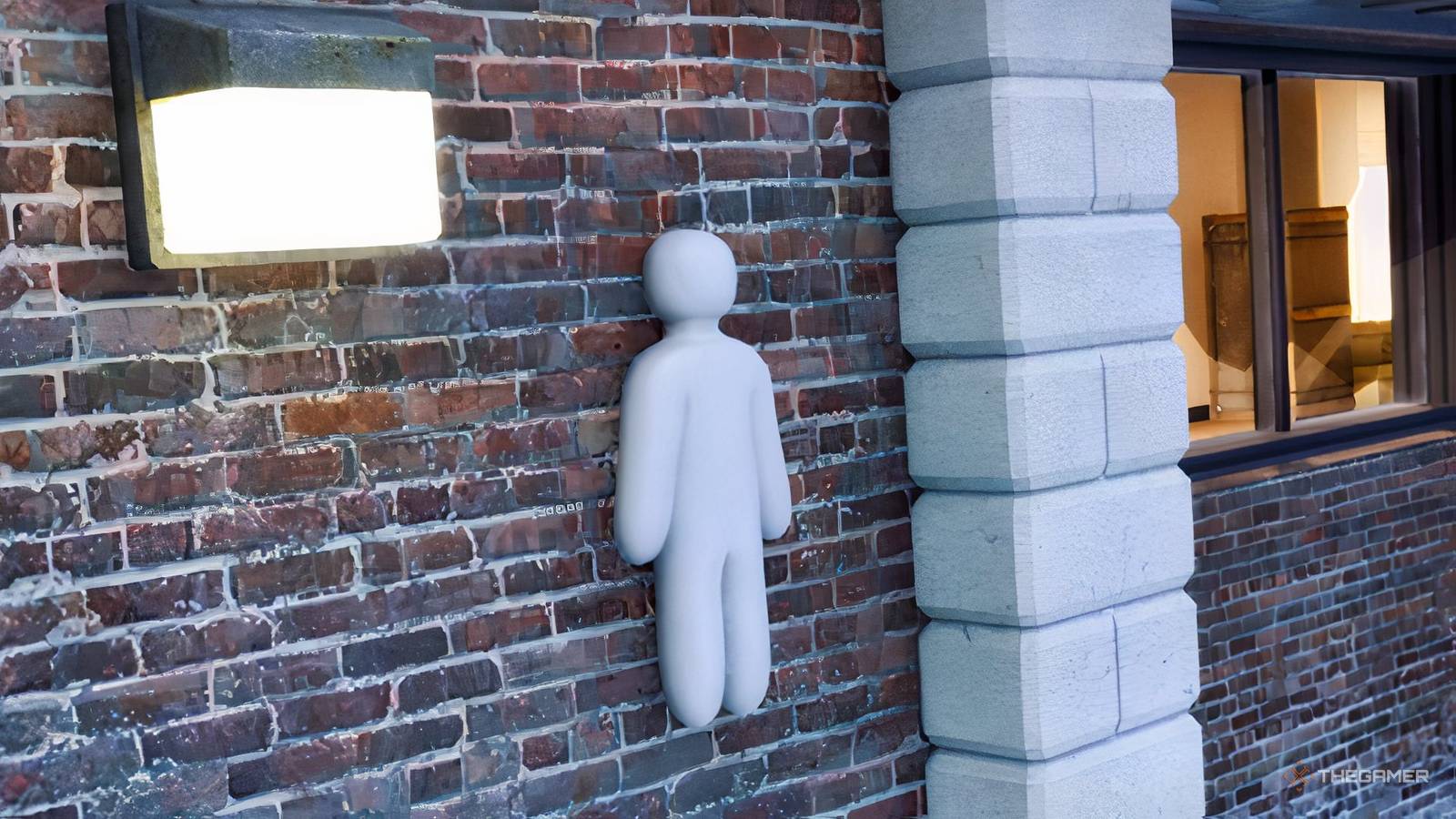
Mod support has become one of the best ways for a game to build a community, and Mecca chameleon jumps into the fun with tools that allow players to create and share their own custom maps. If you've spent any time tinkering around in Unreal Engine, this is your chance to turn a cool idea into something other players can actually explore, survive, and get hopelessly lost in.
The process is a bit more involved than just building a level and hitting publish. Custom maps must be created inside the mod kit, packaged correctly, and prepared for the Steam Workshop before they can be shared with the world.
This is not a beginner friendly process. The modkit is built around Unreal Engine workflows, and you'll work with plugins, packaging settings, file directories, and SteamCMD. If you've never touched Unreal Engine before, this might not be for you.
How to create and upload a custom map

Creating a custom map in Meccha Chameleon is a fairly simple process once you understand the workflow. You come first create your map in a custom plugin, package the project correctly through Unreal engineand then upload the finished files to the Steam Workshop.
This guide walks you through each step of the process, but developers also provide their own official instructions. While I've completed the process myself and included additional tips and troubleshooting advice along the way, it might be helpful to have their step-by-step guide handy for reference as well.
Open the Mod Kit and create a plugin
Before you start, make sure you're using Unreal Engine 5.6.1, as the Meccha Chameleon mod was built for that version. Open the plugin you downloadedlinked above. Once the project is open, create a new content-only plugin by navigating to Edit > Plugins > Add > Content Only Plugin. Give the plugin a unique name, as you will need it later during the packaging process.
If you can't see the plugin in the content browser, click the gear icon and enable plugin content. This will give you access to the folders in your newly created plugin.
Create your custom map
Inside your plugins folder, create a folder called Maps and then create a new level inside it. This level will be the map loaded by the game when players use your mod.
Your map must use world partitioning, and Enable Streaming should be disabled in the World Settings menu. These settings are required for the map to function properly when packaged.
Go to File > New Level > Basic to start with a simple grid to work from. You can use the Fab plugin to find items and buildings to use.
When designing the level, keep in mind that players spawn at X=0, Y=0 and Z=100. If you are building a larger environment, it is a good idea to expand outwards from this location. To prevent camera issues, walls and other solid surfaces should use the CameraBlockWall collision profile, so the camera cannot pass through them.
Package Mod

Once your map is ready, open the Legacy Project Launcher (found on the Platforms button at the top). Here you need to create two packaging profiles:
The FullGame profile should match these settings:
-
Cook > By the Book > Cooked Platforms: Windows (also check “Create a release version of the game for distribution” and name it 1.0).
-
Packages > Package and store locally > Check “Is this build for public distribution” > Check “Use container files for optimized loading (I/O Store).
-
Deploy > Don't Deploy
For the MyMod profile, enter the name of the plugin you created in the Name of the DLC to Build field. This tells the project what content to package as a mod.
-
Cook > By the Book > Cooked Platforms: Windows (also check “Create a release version of the game for distribution” and name it 1.0).
-
Packages > Package and store locally > Check “Is this build for public distribution” > Check “Use container files for optimized loading (I/O Store).
-
Deploy > Don't Deploy
Once everything is configured, package FullGame first and then package MyMod by clicking “Launch this profile”. Avoid changing any project settings between these two versions, as this may cause packaging errors.
Prepare the workshop files
After the packaging is complete, create a folder where you will store the files which will be uploaded to the Steam Workshop.
Navigate to your plugin's packaged output and copy the .pak, .ucas, and .utoc files generated during the build process. You also need to copy the AssetRegistry.bin from the Cooked folder. Finally, create a thumbnail image named Preview.png and place it in the same folder.
At the end of this step, your upload folder should contain the bundled mod files, AssetRegistry.bin and Preview.png. These are the files Steam Workshop needs to deploy your map.
Set up SteamCMD
Meccha Chameleon uses SteamCMD for Workshop uploads. Download SteamCMD, extract the files and run steamcmd.exe. When it opens, log in with your Steam account credentials (Steam> login Username Password).
The mod kit includes a Sample.vdf file that serves as the upload configuration. Make a copy of this file and edit the required fields. You must specify the location of your upload folder, the location of Preview.png, the title of your mod, and its description.
Leave the app unchanged and do not edit published file when creating a new upload.
Upload Mod to Steam Workshop
With your VDF file configured, go back to SteamCMD and run the workshop_build_item commandand points it to the VDF file you just created. SteamCMD will package the information and upload it to the Steam Workshop.
If the upload completes successfully, your mod will appear on the Steam Workshop and can be subscribed to like any other Workshop item. If the upload fails, double check that all necessary files are present.
Once the upload is successful, your custom Meccha Chameleon map is ready for players to download and enjoy.
10 Fun Friendslop Games To Play If You Like YapYap
Yapyap joins the exciting world of friendly games
How to play a custom map

Fortunately, downloading custom maps is much easier than creating them. From the main menu, click on Maps in the lower left corner of the screen. This will open Meccha Chameleon's Steam Workshop page, where you'll find all available community-made maps.
Browse through the selection and find one that catches your eye, then click Subscribe on its Workshop page. Steam automatically downloads the map in the background. Once the download is complete, create a server as normal in the game, and the new map should be available for selection.
Meccha Chameleon: 25 Best Places to Hide
Looking for the best hideouts in Mecca Chameleon? Here are the best places to blend in.
