
Tom Bowen is a senior editor who loves adventure games and RPGs. He's been playing video games for decades now and writing about them professionally since 2020. Although he dabbles in news and features from time to time, he spends most of his time writing guides these days.
NVIDIA kicked off GTC 2026 with the announcement of DLSS 5, a next-generation upscaling technology designed to “bridge the gap between rendering and reality” through the use of generative AI. CEO Jensen Huang called it the “GPT moment for graphics,” but not everyone saw it as a good thing. Within hours, players everywhere were making fun of some of the faces showcased in the game Resident Evil Requiem tech demo, while others scoffed at the fact that it required dual RTX 5090s just to run it.

A complete guide to the PlayStation 5
Given the sheer size of the console's library and its ever-growing nature, finding the best PlayStation 5 games can be a real challenge these days.
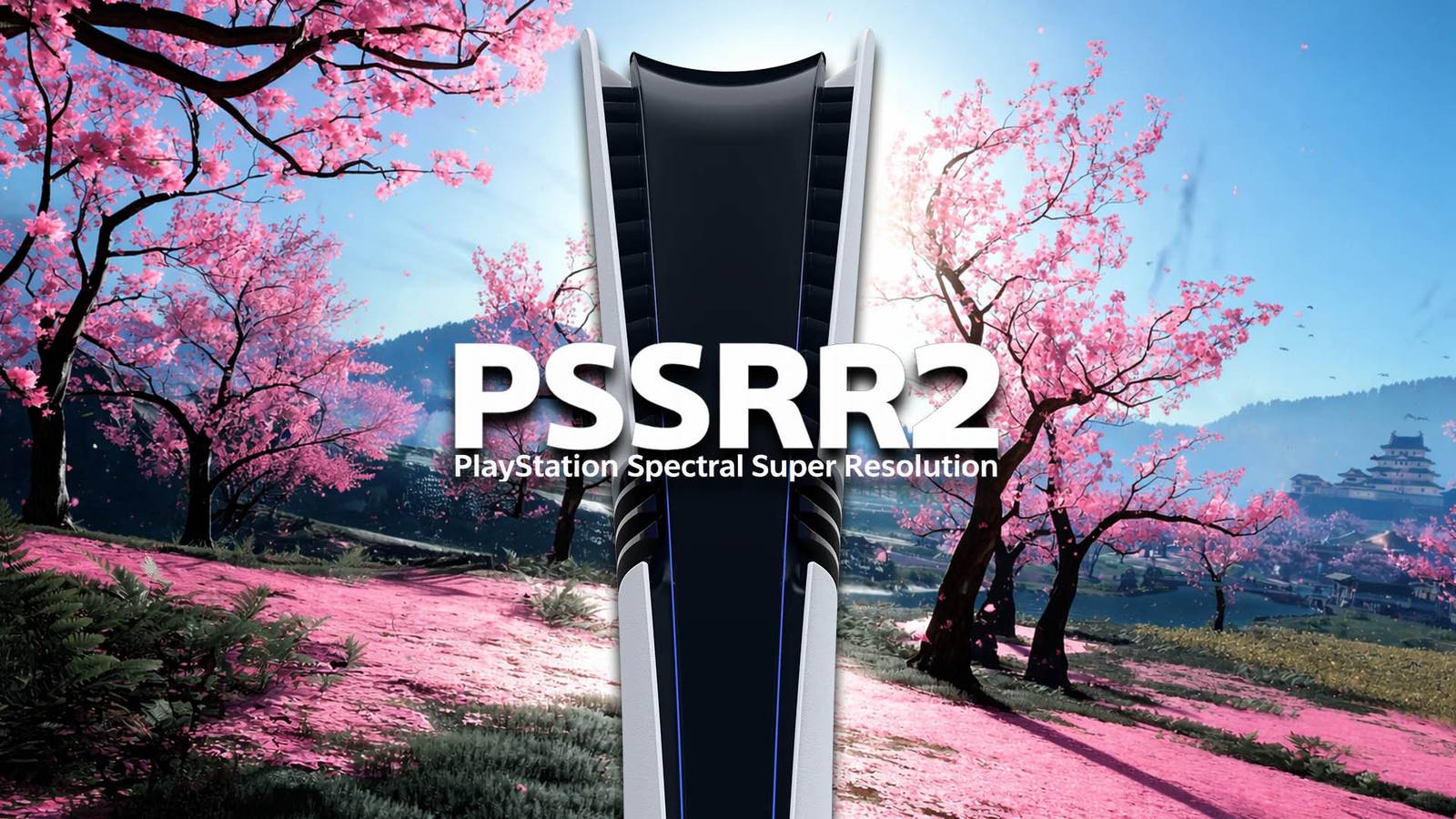
While the rest of the gaming world was busy arguing over artistic integrity, Sony quietly released an image enhancement solution worth getting excited about. The PSSR 2 the update began rolling out to the PS5 Pro that same evening, significantly reducing the shimmering and ghosting that had plagued the hardware since launch. Unlike DLSS 5, it's not a flashy, generative overhaul poised to change the face of gaming, but rather a rock-solid stability pass that finally delivers the clarity Sony promised us all pre-launch. Here's how to enable it.
How to enable PSSR 2 on PS5 Pro

The best thing about the PSSR 2 update is that it doesn't require a patch for every single game. Instead, it uses a system-level toggle that applies the improved model across your entire game library. PSSR 2 is disabled by defaulthowever, so you have to turn it on before you can take advantage of the many improvements it provides.
Before enabling PSSR 2, you must ensure that you are running system software version 26.02-13.00.00 or later. Assuming you are, head over to the Settings menu and select the Display & Video option. From there, just scroll down through the video output menu and then change “Enhance PSSR image quality” from off to on.
Step-by-step: Activate PSSR 2
- Update your console – Before PSSR 2 can be activated, you must run system software version 26.02-13.00.00 or later. Go to Settings > System > System Software > System Software Update & Settings to check for the latest update, if you haven't already installed it.
- Open display and video settings – From the PlayStation 5 home screen, select the Settings gear icon in the upper right corner, then scroll down and select Screen and video.
- Navigate to Video Output – Make sure that Video output is highlighted in the left sidebar, then scroll down through the list of technical settings until you get to an option labeled “Improve PSSR Image Quality”.
- Toggle “Enhance PSSR Image Quality” – Highlight Improve PSSR image quality and toggle the switch to On to enable PSSR 2.
PSSR 2 improves image clarity, reduces ghosting and stabilizes edges
While DLSS 5 aims to generate new details, PSSR 2 focuses on cleaning up the ones that are already there. You will notice two immediate improvements after enabling PSSR 2 on your PS5 Pro.
- Stable edges – Thin objects like power lines or leaves no longer creep or shimmer when you move the camera.
- Ghosting Fix – Fast-moving objects such as vehicles and projectiles no longer leave behind blurry trails.
It's worth noting that not all PlayStation 5 games have been tested with the new technology, so it's possible that there may be issues when playing some older games. If you ever run into any issues, you can always disable PSSR 2 again by turning off Enhance PSSR Image Quality again, although you'll need to restart the game you're playing for the change to take effect.

- Stamp
-
Sony PlayStation
- Original release date
-
November 7, 2024
- Original MSRP (USD)
-
$749.99
- Processor
-
AMD Ryzen Zen 2 (8 cores, 16 threads, 3.5 GHz)
