
Ayyoun is a staff writer who loves all things gaming and technology. His journey into the gaming world began with a PlayStation 1 but he chose PC as his platform of choice. With over 6 years of experience in the gaming journalism industry, he has loved every second of writing about games as much as he has loved playing them. Catch him either surfing Reddit, trying out a game, or cooking in his spare time.
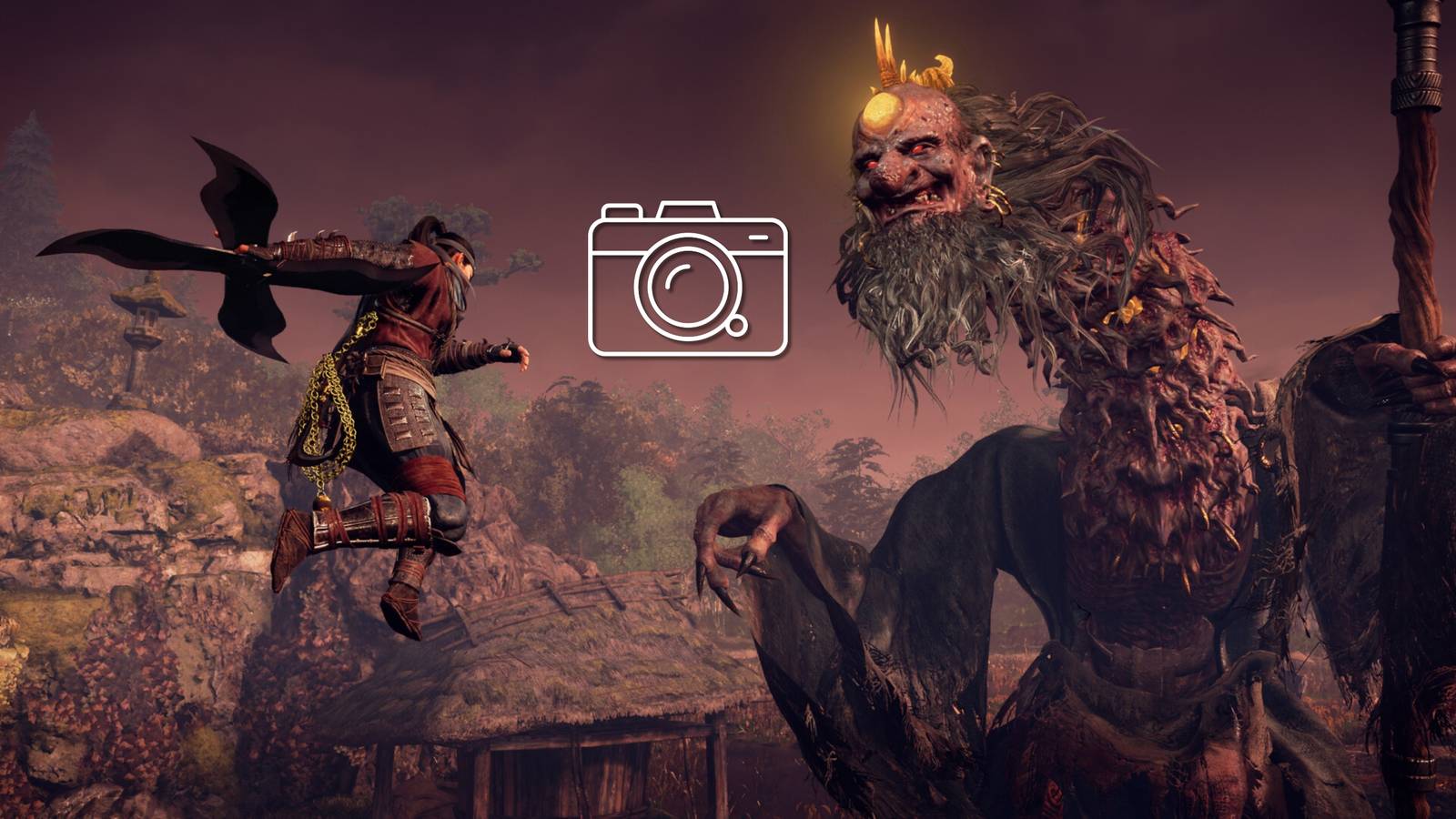
Nioh 3 faithfully reconstructs ancient Japanese eras, with beautiful scenery that houses some of the most dangerous Yokai mankind has seen. Gamers who love to be a shutterbug have an opportunity to capture some cool in-game moments via the Photo Mode tool. It is an easy-to-use tool with tons of features that will give you the perfect screenshot to showcase some of your cool moments in Nioh 3.

Nioh 3: How to get and use character creator codes
Nioh 3 features an expansive character creator where players can either design their own character or use a character creator code to import designs.
How to use photo mode in Nioh 3

If you are wondering how to use the photo mode in Nioh 3it's really simple. Simply go to System settings and select Photo mode option from the menu. The game will pause while you're in photo mode, giving you a much-needed break from the action to capture that perfect screenshot you want.
Players can activate photo mode in Nioh 3 by pressing Options/Menu + R1/RB buttons on the controller, or The “P” key on the keyboard. But the photo mode shortcut must be enabled in the settings tab of the photo mode itself.

There are several settings that players can use Nioh the 3rd photo mode to adjust and fine-tune their screenshot before capturing their character in action. Here's a breakdown of all the settings you can expect to encounter in Photo mode.
|
Feature |
Photo mode setting |
Functions explained |
|---|---|---|
|
Camera |
Camera tilt |
This allows you to frame your image by adjusting the tilt of the camera and increasing or decreasing the default FOV to add more of the in-game scene to the image. |
|
Field of view |
||
|
Image adjustment |
Exposure correction |
It allows you to light up the scene in the game and add a Bokeh (blue) effect to add focus to your character or another NPC in the scene. |
|
Brightness |
||
|
Blur depth |
||
|
Blur intensity |
||
|
Lighting |
Lighting number |
Players can add simulated light sources to their scenes. This is not only great for brightening up your image, but also helps add a dramatic feel to your screenshots. |
|
Switch lighting |
||
|
Adjust position |
||
|
Brightness |
||
|
Shades of light (red, green, blue) |
||
|
Aesthetics |
Filter |
Use a variety of filters based on your taste. |
|
Frames & stickers |
Frame |
Players can add a frame, some fun stickers or simply important information to the screenshot, depending on their requirements. |
|
Sticker |
||
|
Show copyright |
||
|
Player information |
||
|
Date and time |
||
|
Text position |
||
|
Text orientation |
||
|
Characters & NPCs |
Show players |
This section can help you take out your character or other nearby NPCs. Perfect for capturing specific objects or views in the game. |
|
Show friendly NPCs |
||
|
Show NPCs |
||
|
Show enemies |
||
|
Expression |
||
|
Line of sight (vertical and horizontal) |
||
|
Objects & effects |
Show main armor |
You can fine-tune the scene further by adjusting your character's appearance or helping you remove all gore effects from the scene. |
|
Display melee weapons |
||
|
Show ranged weapons |
||
|
Show blood on weapons |
||
|
Show bleeding |
||
|
Show effects |
||
|
View Bloody Graves |
||
|
Show benevolent graves |
||
|
Show dropped items |



- Released
-
February 6, 2026
- ESRB
-
Mature 17+ / Blood and Gore, Suggestive Themes, Violence, In-Game Purchases, User Interaction
