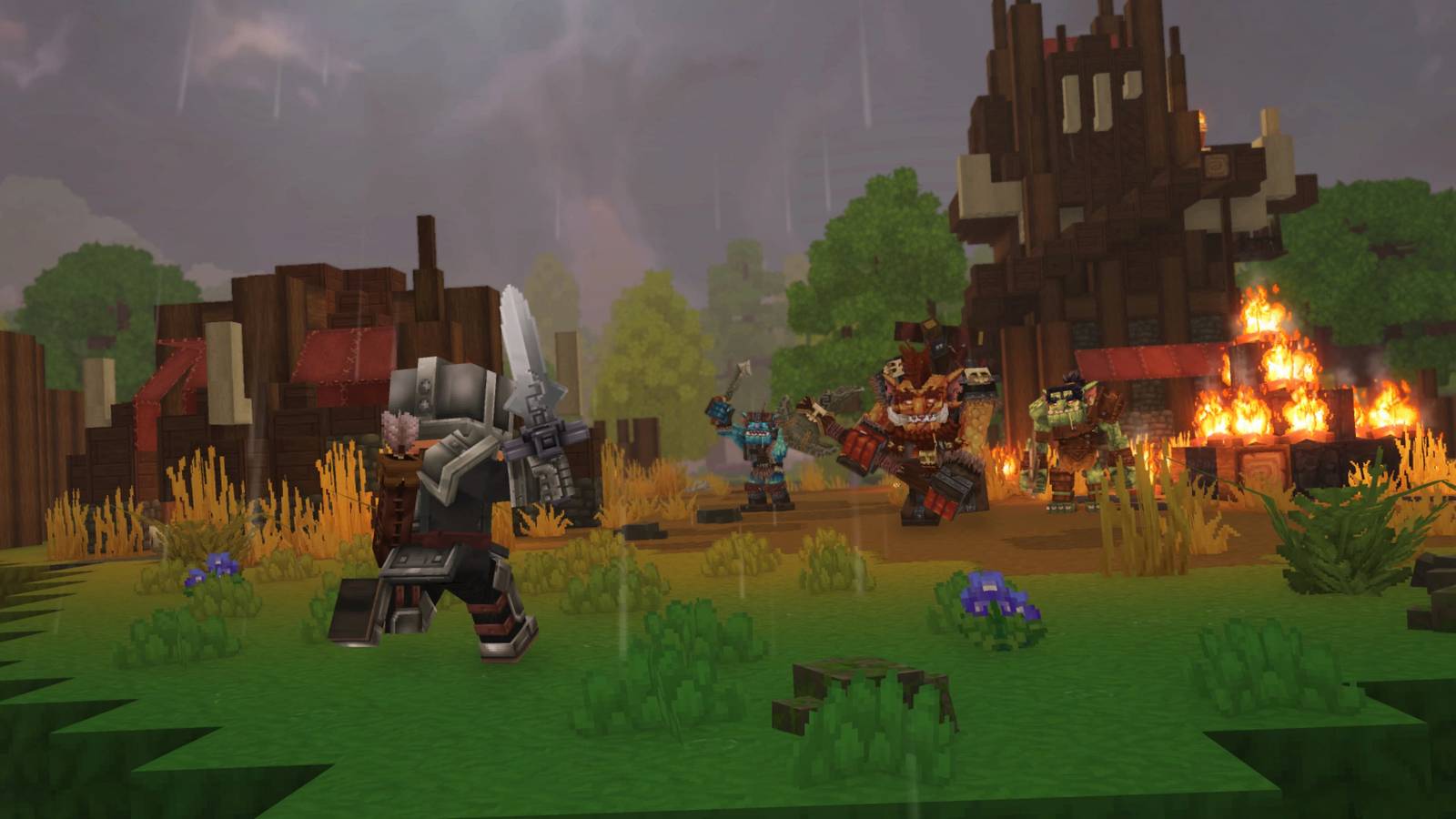
Hytale is a huge game full of all sorts of experiences, and seeing them all is bound to take a while. If you want to explore the game, or if you want to take your time just building stuff or experimenting with items, you’ll be glad to know that Hytale has an extensive Creative Mode that allows for all of that and more.
Creative Mode lets players do a lot of things, from spawning items and NPCs, to modifying the world and assets, and even creating machinima. There’s a lot to unpack here, especially with the latter three, and if all you want is to enable cheats and mess around with the game, here’s what you need to know.

How to Install Mods in Hytale
If you want to know how to Install Mods in your Hytale world, check out this full step-by-step guide on how to download and activate mods in the game.
How to Use Cheats in Hytale

First, you don’t need to make a Creative Mode world in order to use cheats and console commands in Hytale. If you’re hosting a server for your friends, or if you’re playing solo, type in the following code first in the in-game text chat:
This will give you admin permissions, which will essentially enable cheats and console commands for you. There’s a long list of console commands for the game, but for casual players who just want to have test stuff or have fun, here are some useful commands to know:
-
/gamemode [a/c] [playername]: Switches the game mode from Adventure (a) to Creative (c) for the specified player.
- Alternatively, press the O key.
-
/give [playername] [item name] [–quantity=x]: Gives you specific quantities of an item of choice, such as unreleased weapons or copious amounts of metal ores.
- You need to use the item’s ID name. For example: /give [name] Tool_Hatchet_Cobalt –quantity=5.
- /time set [0-24]: Changes the time based on the 24-hour clock.
- /tp [player1] [player2]: Teleports [player1] to the location of [player2]
How to Fly in Hytale Creative Mode

If you’re in Creative Mode, you can fly by double-tapping the Space bar. Hold Space while flying to ascend, and hold Ctrl to descend. To stop flying, double-tap Space again.
How to Use God Mode in Hytale
You’ll be immune to all damage and stamina loss as long as you’re in Creative Mode. This shouldn’t be an issue of the world you’re in is already in Creative Mode, but if you’re in Exploration Mode, you can enter god mode by typing “/op self” in chat then pressing the O key. This
All Console Commands in Hytale

You can view all Console Commands in the game by typing the “–help” command in text chat. Alternatively, you can go to a Creative Mode world, then select the Creative Tools tab by opening the character menu. There’s an entire section there dedicated to console commands, including detailed explanations on what they do and how to use them. For reference, here are all the usable commands in the game (excluding the ones we already mentioned above):
- /ambience
- /assets
- /auth
- /backup
- /ban
- /bindings
- /block
- /blockselect
- /blockset
- /blockspawner
- /buildertoolslegend
- /camshake
- /checkpoint
- /chunk
- /clearblocks
- /clearedithistory
- /clearentities
- /commands
- /contractselection
- /convertprefabs
- /copy
- /cursethis
- /cut
- /damage
- /debug
- /debugplayerposition
- /delete
- /deselect
- /desyncdamage
- /droplist
- /echo
- /editline
- /editprefab
- /emote
- /entity
- /environment
- /eventtitle
- /expand
- /extendface
- /fillblocks
- /fillsignature
- /flip
- /fluid
- /fragment
- /gmask
- /heal
- /help
- /hide
- /hitbox
- /hitboxcollision
- /hitdetection
- /hollow
- /hotbar
- /hub
- /hudtest
- /importimage
- /importobj
- /instances
- /interaction
- /inventory
- /itemstate
- /kick
- /kill
- /landiscovery
- /land
- /leave
- /lighting
- /log
- /maxplayers
- /memories
- /messagetest
- /model
- /mount
- /move
- /neardeath
- /network
- /networkchunksending
- /noon
- /notify
- /npc
- /objective
- /packetstats
- /packs
- /particle
- /paste
- /path
- /perm
- /pidcheck
- /ping
- /play
- /player
- /plugin
- /pos1
- /pos2
- /prefab
- /prefabspawner
- /recipe
- /redo
- /refer
- /repairfillers
- /replace
- /repulsion
- /reputation
- /resetrotation
- /rotate
- /say
- /scriptedbrushes
- /selectchunk
- /selectchunksection
- /selectionhistory
- /server
- /setblocks
- /setticking
- /settimeandgohome
- /settoolhistorysize
- /shift
- /sleep
- /sound
- /spawn
- /spawnblock
- /spawning
- /spawnitem
- /stack
- /stash
- /stop
- /stresstest
- /submerge
- /sudo
- /tagpattern
- /tint
- /togglelockplacementoverride
- /toggletmptags
- /unban
- /undo
- /unstuck
- /update
- /updateselection
- /validatecpb
- /version
- /viewport
- /voidevent
- /wait
- /wall
- /warp
- /weather
- /whereami
- /whitelist
- /who
- /whoami
- /world
- /worldgen
- /worldmap
- /worldpath
